
Check CPU usage at a glance.
See current CPU usage as a percentage or gauge without opening Activity Monitor. CPU Widgets update in real time, showing system and user activity. Choose from Overview, gauge, history, column styles, or the Top Apps by CPU widget to see which processes are using your processor.
Check RAM usage and memory pressure.
Memory Widgets show RAM usage, memory pressure and swap activity. The Top Apps by RAM widget identifies which apps are using the most memory. Keep memory information visible while you work without keeping Activity Monitor open.
Monitor system performance over time.
Compute history and Memory history Widgets show recent activity trends. See if high CPU or RAM usage is sustained or just a brief spike. Temperature and GPU Widgets are available where your Mac provides those readings.
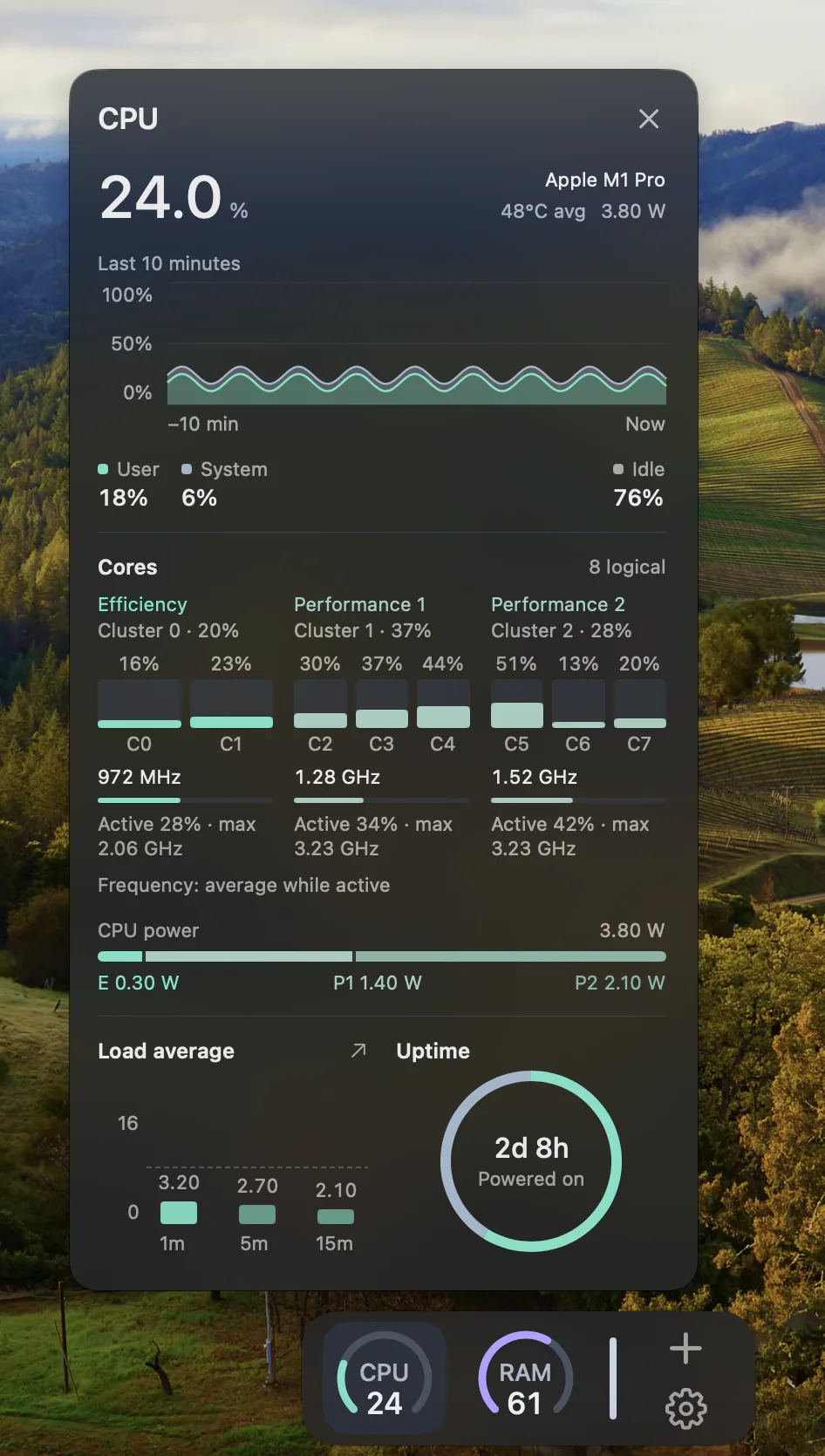
See which apps are using resources.
Top Apps Widgets for CPU, RAM and GPU show which processes are consuming resources. Click a Widget to see detailed breakdowns. This helps you identify resource-heavy apps without switching to Activity Monitor.
System Widgets in your independent Dock.
DockMagic's System Widgets live in a separate Dock at the bottom, left or right edge of your screen, alongside the Apple Dock. Most system Widgets are free; some styles require Premium. Use Activity Monitor for detailed diagnostics and process management.
Questions about checking CPU and RAM on Mac
How do I check CPU usage on my Mac?
Use Activity Monitor for detailed diagnostics, or add a DockMagic CPU Widget to see current usage at a glance. CPU Widgets show percentage, gauge, or column views. For top processes, use the Top Apps by CPU widget.
How do I check RAM on my Mac?
Open Activity Monitor and select Memory to see RAM usage, memory pressure and swap. For quick checks, add a DockMagic Memory Widget to your Dock. The Top Apps by RAM widget shows which apps are using the most memory.
What's the difference between CPU usage and memory usage?
CPU usage measures processor activity — how much of your Mac's computing power is being used. Memory (RAM) usage measures how much data is loaded into memory for quick access. Both can affect system performance, but they measure different resources.
Do I need to keep Activity Monitor open?
No. DockMagic's System Widgets show live CPU, RAM, GPU and temperature readings in your Dock. Use Activity Monitor when you need detailed process information, memory diagnostics, or to force-quit apps. For quick checks, keep Widgets visible instead.
Are temperature and GPU readings always available?
Temperature and GPU readings depend on your Mac's hardware and the sensors it exposes. Apple silicon Macs and some Intel Macs provide temperature data; GPU readings depend on the GPU and macOS APIs. If a reading shows '—', that sensor is unavailable on your Mac.