
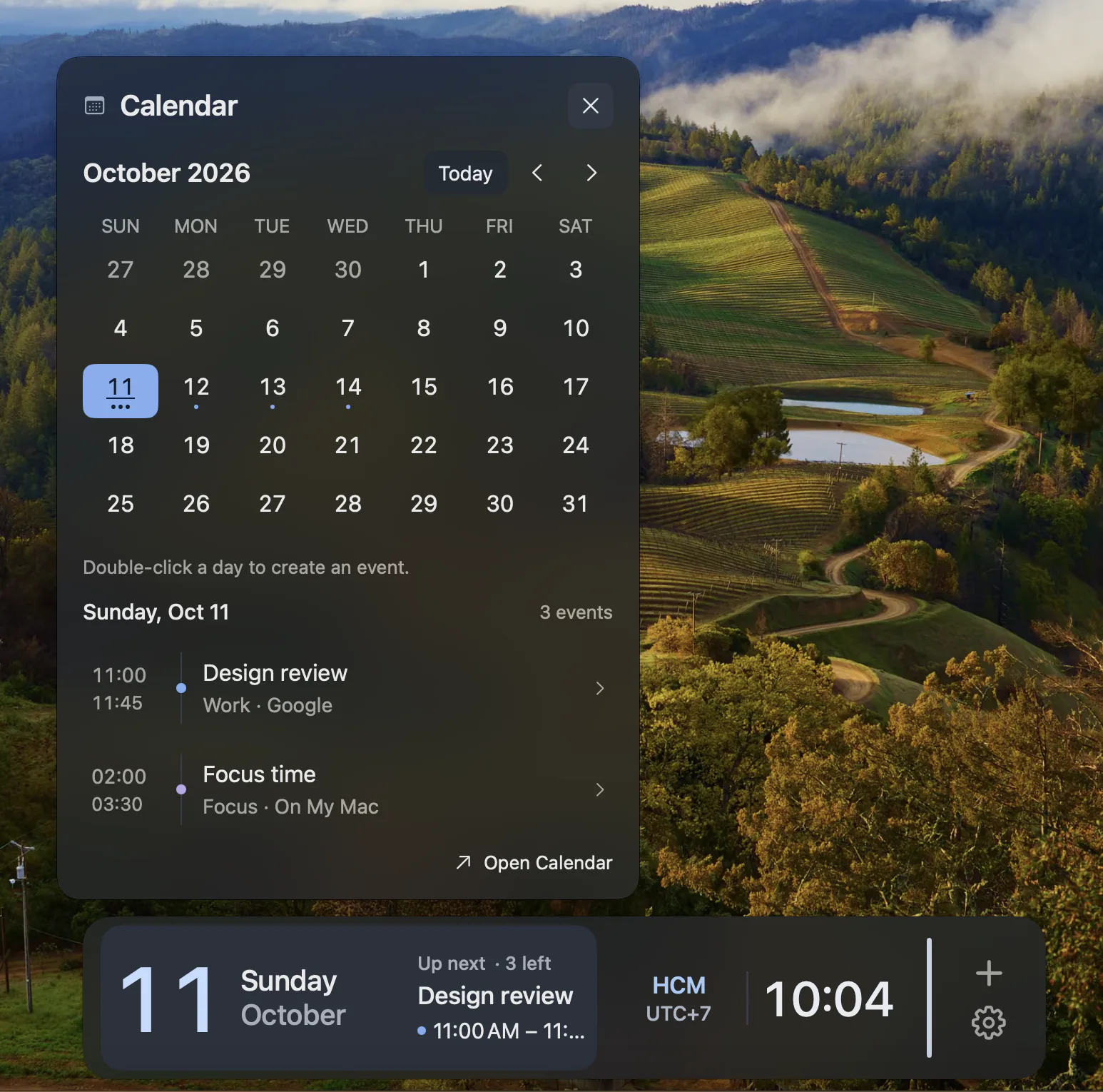
Use the calendars on your Mac.
The Calendar Feature reads the calendars available to macOS after you grant Calendar permission. Start with the calendars already configured on your Mac. An account or calendar that is not available there should not be assumed to appear in DockMagic.
A place for your next event.
Keep Calendar alongside a Clock, System or Network Widget. You choose the Widgets in your independent Dock, and place the Dock at the bottom, left or right of the screen. The Apple Dock remains a separate part of macOS.
Write where writing is allowed.
Event creation needs a writable calendar. A subscribed or read-only calendar may be useful to view but cannot accept a new event. Calendar access and the selected calendar’s capabilities determine what DockMagic can do.
Check access when events are missing.
If the calendars you expect are not visible, first check whether they are available in macOS Calendar and whether DockMagic has Calendar permission. DockMagic is a view into those calendars, not a separate calendar-account hosting service.
Questions
Does Calendar need permission?
Yes. Calendar permission is required to read events and create events in writable calendars.
Can I create events in every calendar?
No. The selected calendar must allow writing. Read-only or subscribed calendars do not become writable through DockMagic.