

Choose how you read the time.
Browse Quiet, Split, Index, Studio and other Clock styles in the Widget catalog. Some emphasize the current time; others add date context. Pick the presentation that fits your daily routine instead of filling your Dock with every available style.
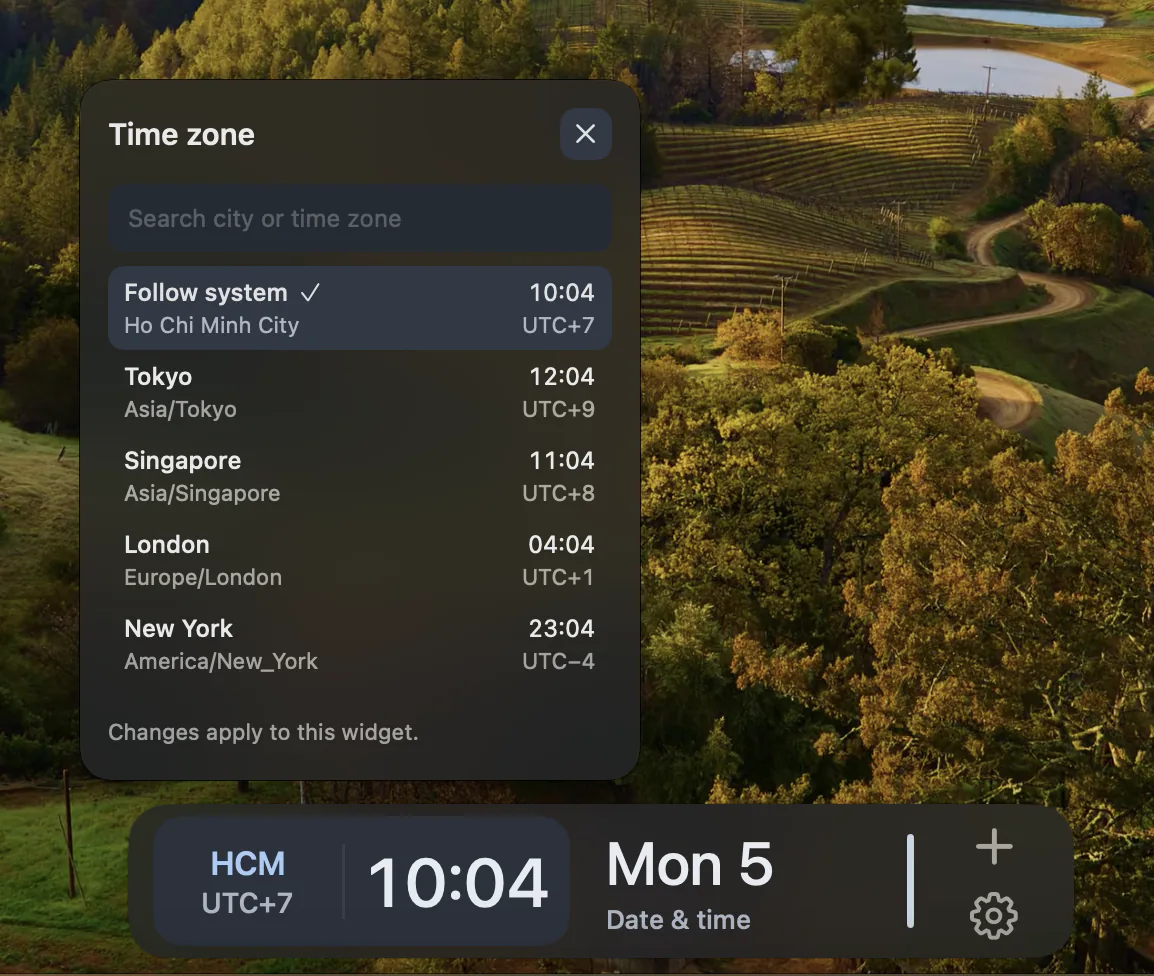
Keep another time zone in view.
For a supported style, choose the time zone you need or let it follow the Mac’s system time zone. This can put a colleague’s local time beside your work. Time-zone configuration depends on the chosen Widget style.
Put time alongside context.
Combine a Clock Widget with Calendar to keep time and events close together, or with System and Network for a workstation overview. Each placed Widget remains part of its own Feature; adding a Clock does not require adding the other Features.
A clock in your independent Dock.
DockMagic’s Widgets live in its own Dock at the bottom, left or right edge. They are separate from Apple’s desktop widgets and the clock in the macOS menu bar. You can keep the surfaces that suit how you work.
Questions
Can every Clock style change time zone?
Time-zone selection is available in supported Clock styles. Check the chosen style’s options rather than assuming that every date or clock presentation has identical settings.
Does DockMagic replace the menu-bar clock?
No. These Clock Widgets are displayed in the independent DockMagic Dock.