
What is my Mac transferring?
Open Activity Monitor and select Network. Compare the process list’s sent and received data with the transfer rates below it. A byte total records how much data moved; bytes per second describes a rate. DockMagic’s Network Widgets show incoming and outgoing traffic on active physical interfaces.
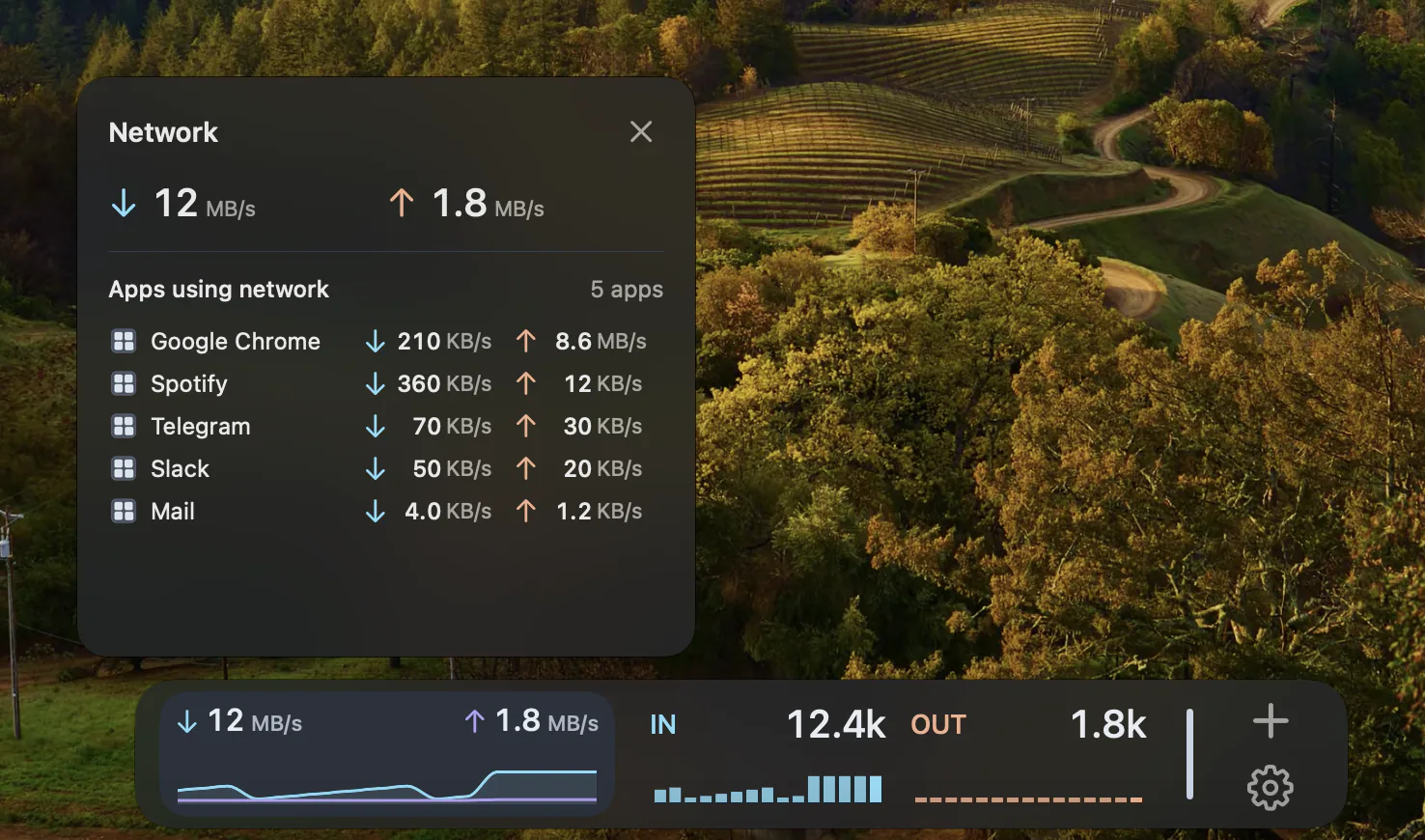
How much could my connection carry?
Use a separate speed test to estimate available capacity. A Mac with no active transfers may show little traffic on a fast connection. A large backup or download may show high traffic without a fault. Compare results under similar conditions, including Wi-Fi or Ethernet and other transfers using the connection.
Compare the units first.
One byte contains eight bits. Using decimal units, 10 MB/s equals 80 Mbps; 100 Mbps equals 12.5 MB/s before allowing for protocol overhead and changing conditions. These are unit conversions, not promised download rates. Check whether a tool uses MB, MiB or Mb before comparing its numbers.
Match the time window.
A one-second rate and a longer average can differ even during the same transfer. Compare the same direction and similar time windows. A local copy to another device can create network traffic without measuring internet capacity, and this Mac’s reading does not describe every device on the router.
Choose a useful next step.
Use Activity Monitor’s Network view for process detail. Use a speed test for estimated capacity. For one HTTPS request from this Mac, Website Monitoring reports availability and response-header time, which is different from full page-load time.